Laptop diagnostic guide
Loose or Wrong Laptop Screws After Service
Published by MASHFiX Computer Repair and Data Recovery ·
A rattling screw or a bottom cover that will not sit correctly needs inspection before charging or tightening random replacement screws.
If you hear a loose object inside after laptop work, or the cover no longer sits correctly, shut down and disconnect the charger. Do not shake the machine to move the object, press the case flat or add a screw simply because it fits the hole.
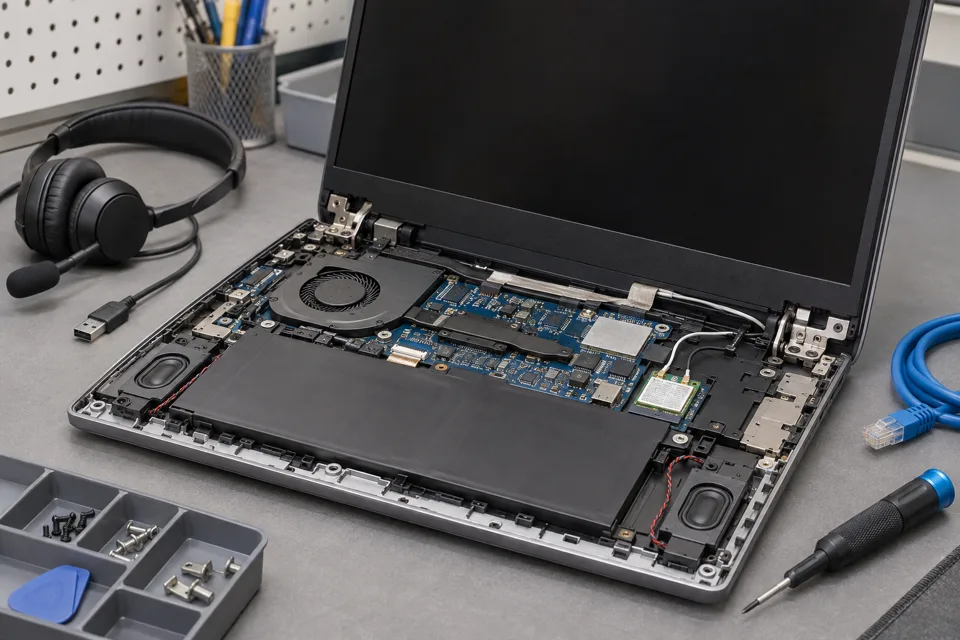
What this symptom can mean
Laptop fasteners are part of a model-specific assembly. Different locations may use different lengths, types or mounting arrangements. A loose metal screw can create an electrical problem inside the computer, while a misplaced fastener can damage nearby parts. Dell’s safety and service guidance specifically warns about lost or misplaced screws and battery damage.
A rattle appeared after an upgrade
Report what was changed and when the sound started. Avoid powering the laptop repeatedly to prove it still works; normal startup does not establish that a loose internal object is harmless.
The cover has a new bulge or gap
Stop forcing it closed. A trapped part, wrong fastener, damaged mount or battery swelling can require different responses. The visible gap alone does not identify which one is present.
Safe checks before service
- Keep the laptop off if an internal loose object or battery damage is suspected. Disconnect AC only when it is safe to do so.
- Retain leftover screws and the original repair information in a separate container; do not place loose metal in the laptop bag beside exposed ports.
- Photograph the outside condition without dismantling the machine or pressing on a raised area. Describe any heat, odor or change in charging.
Do not use a magnet, sharp tool or improvised screw to retrieve or secure parts through vents. Do not puncture, pry, bend or compress a battery. If the machine is hot, smoking or hissing, move away and seek emergency help rather than attempting a repair.
What professional diagnosis should separate
- 01
Identify the assembly and fastener map
Mashfix can check the exact model’s service information and inspect the reported area with the device appropriately isolated.
- 02
Account for the loose or misplaced part
The assessment can distinguish an external missing screw from a loose internal object, incorrect fastener or damaged mounting point. A missing screw does not automatically mean another is safely interchangeable.
- 03
Inspect what the fastener could affect
Battery, cables, board areas and enclosure supports may need examination before normal use resumes. Repair scope follows the actual condition, not simply tightening the visible cover.
Provide the repair history
For Dallas–Fort Worth support, explain whether the laptop was recently opened for memory, storage, battery or screen work. Keep the previous parts and service notes available. This helps Mashfix plan an inspection that accounts for the change while protecting private files and avoiding an unsupported assumption about who or what caused the problem.
An assembly inspection is not a reason to erase storage. State the importance of the files before service; do not charge a potentially damaged battery just to copy them.
Common questions
Answers before you approve a repair
Can I use a screw from another laptop?
Do not assume it is suitable. The required type and length depend on the model and location, and a screw that threads in may still be wrong.
The laptop still works. Can I ignore a loose internal screw?
No. Working at the moment does not remove the possibility of movement, contact or later damage. Arrange inspection before continuing normal use.
Need help in DFW? Compare the Dallas shop and Fort Worth shop at Suite 100, or review scheduled home and office visits. We confirm the service path, scope and timing before booking.
Product guidance and references
These technical resources explain the referenced behavior. Your device and situation still need their own assessment.