Mac diagnostic guide
MacBook Display Goes Dark When the Lid Closes
Published by MASHFiX Computer Repair and Data Recovery ·
A MacBook external screen that goes dark when the lid closes needs a setup check. Review power, input devices and model-specific display support.
Open the lid to restore a usable view and save your work. Identify the Mac model, connected displays, power source and external keyboard and mouse before changing the setup.
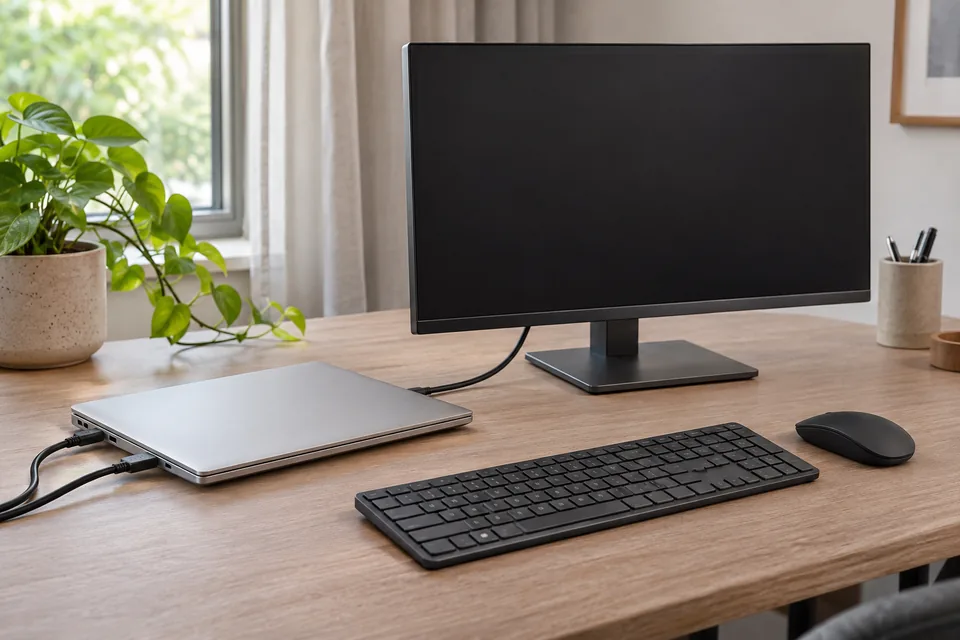
What this symptom can mean
Closing a laptop normally changes its sleep and display behavior. Apple’s external-display guidance says closed-lid use needs power and an external keyboard and mouse. A display can provide the required power in an appropriate setup, but a cable that carries video does not automatically provide adequate charging. Supported display counts and resolutions also vary by Mac model.
One display works open but not closed
Check the closed-lid requirements and wake input first. This is a different pattern from a monitor that never receives video in either state.
A second display changes when the lid opens
Some model-specific arrangements depend on lid state. Check the exact Mac specifications rather than copying the setup used by a different MacBook.
Safe checks before service
- Confirm the Mac is connected to an appropriate power source, including whether the display or dock actually supplies power.
- Make sure the external keyboard and mouse work with the lid open before relying on them to wake and control the Mac.
- Confirm the monitor is on the correct input and its video cable is firmly connected.
- If a dock is involved, compare a supported direct display connection where possible.
- For an Apple-silicon Mac that requests accessory permission, review the request while the lid is open and the Mac is unlocked.
Do not install unknown keep-awake utilities, disable security protections or repeatedly force the Mac off as a first response. Do not assume a USB-C charging cable supports the necessary video signal. Do not continue closing a visibly damaged hinge or swollen laptop enclosure.
What professional diagnosis should separate
- 01
Map the supported workstation
Identify the Mac’s display capability, actual power path, video standard and input devices. The whole chain needs to support the intended arrangement.
- 02
Compare open and closed operation
Verify the symptom in both states and distinguish sleep, accessory permission, cable or dock behavior from a hardware fault requiring further assessment.
A charging icon is only one part of the setup
The monitor’s video connection, external input devices and the laptop’s supported display arrangement remain separate requirements. A setup can charge the Mac while failing to provide video, or produce video while using a power arrangement that does not meet the intended closed-lid configuration. Describe both behaviors when requesting help.
Bring or identify the actual display, dock, adapters and cables involved. Testing only the laptop at a repair bench may not reproduce a problem caused by equipment left at home or the office. Photographs of connector types can help; keep account names and documents off visible screens.
Choosing onsite setup or Mac assessment
Mashfix can help evaluate the workstation and explain whether the issue fits an authorized home or business setup visit or a Mac hardware assessment. Share the model and whether the problem exists with the lid open, closed or both. Eligible Apple Independent Repair Provider work is routed according to Mashfix’s verified location and program scope; this guide does not extend that status to every branch or onsite task.
Save documents before changing display connections. Keep the Mac accessible through its built-in display until the external keyboard, mouse and monitor work; display troubleshooting should not begin with erasing or restoring macOS.
Common questions
Answers before you approve a repair
Does a dark monitor after closing the lid prove a broken display?
No. Power, input devices, supported display configuration and connection behavior need checking first.
Can every MacBook run the same number of external monitors?
No. Supported counts, resolutions and lid-state behavior depend on the exact model.
Need help in DFW? Compare the Dallas shop and Fort Worth shop at Suite 100, or review scheduled home and office visits. We confirm the service path, scope and timing before booking.
Product guidance and references
These technical resources explain the referenced behavior. Your device and situation still need their own assessment.