Printer diagnostic guide
Scanner ADF Pulls Multiple Sheets: Protect the Originals
Published by MASHFiX Computer Repair and Data Recovery ·
When a scanner skips pages because it feeds two originals together, distinguish document preparation from feeder wear before rescanning important records.
Stop feeding valuable originals after a misfeed. Count the pages and compare that count with the scanned file before relying on the digital copy.
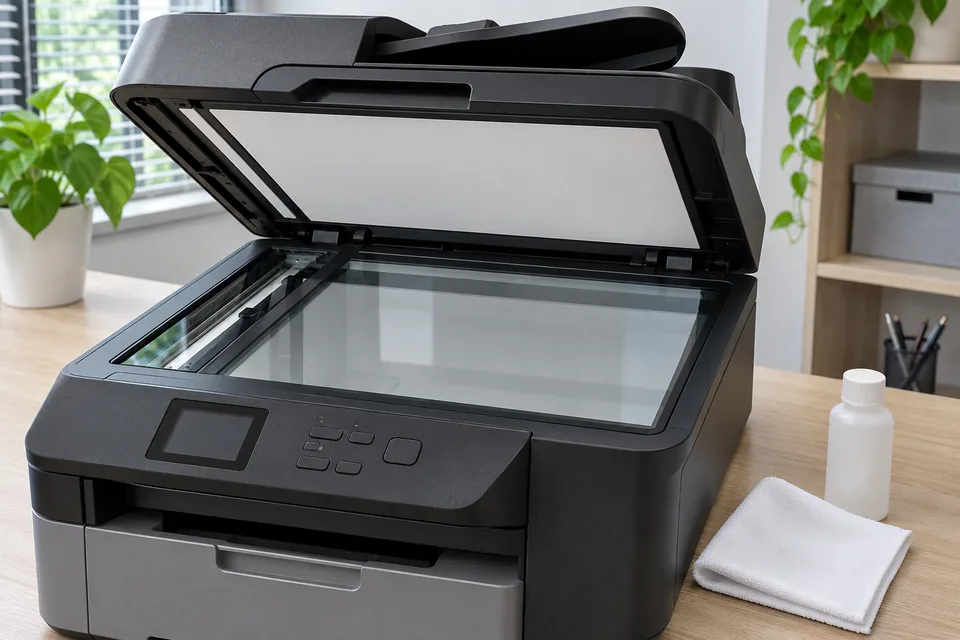
What this symptom can mean
The automatic document feeder must separate each sheet before scanning it. Curled, damp, stuck or unsupported paper can interfere with that process. Dirty or worn pickup rollers and separator parts can also contribute. A scan can look clear while entire pages are missing, so image quality alone does not verify a successful document capture.
Flatbed scans are complete but batch scans miss pages
This narrows attention toward the feeder and document stack. It differs from vertical streaks caused by contamination on the narrow scanner glass.
The feeder grabs several sheets together
Check the manual's paper type, thickness and stack limits. Mixed originals or damaged edges can make separation unreliable even when plain test paper feeds normally.
Safe checks before service
- Remove staples and clips without damaging the originals.
- Use the flatbed for fragile, torn or irreplaceable sheets when supported.
- Test with a small stack of ordinary blank paper before another valuable batch.
- Keep pages in order and verify both sides when using duplex scanning.
Turn the printer off and disconnect power before opening user-accessible feeder covers. Follow the model manual for cleaning materials and drying time. Do not pour cleaner into the feeder or force a sheet against jammed rollers.
What professional diagnosis should separate
- 01
Reproduce the feed failure safely
Mashfix can compare single sheets, a suitable test stack and flatbed output to document the failure.
- 02
Inspect feeder condition
Accessible roller contamination and worn separation components require different service decisions. Part availability depends on the scanner model.
- 03
Check the saved document
Verify page count, order, readability and duplex sides after the feed problem is corrected.
Arrange printer support with useful evidence
For a Dallas or Fort Worth office, note the printer model, paper type and whether the problem occurs while copying as well as scanning. A brief page-count record is more useful than sending private scanned documents in the initial inquiry. Ask whether onsite evaluation is suitable for the equipment.
Keep the original documents until the entire digital file is checked and backed up. Use non-sensitive test sheets during troubleshooting rather than customer or financial records.
Common questions
Answers before you approve a repair
Does cleaning the glass fix double feeding?
It may improve streaks, but page separation involves feeder rollers and separator parts. Diagnose the actual symptom.
Should I keep scanning until every page appears?
Repeated misfeeds can damage originals and create mixed versions. Pause, preserve the originals and use a controlled test.
Visit a DFW repair shop
- Arlington603 Causley Ave
Arlington, TX 76010 - Dallas4323 W Illinois Ave, Suite 104
Dallas, TX 75211 - Euless1001 W Euless Blvd, Suite 417
Euless, TX 76040 - Fort Worth6800 Randol Mill Rd, Suite 100
Fort Worth, TX 76120 - Grand Prairie207 Clarice St
Grand Prairie, TX 75051 - Irving4324 N Belt Line Rd, Suite C103
Irving, TX 75038
Product guidance and references
These technical resources explain the referenced behavior. Your device and situation still need their own assessment.