Windows diagnostic guide
USB Device Stops After Sleep: Resume or Connection Fault?
Published by MASHFiX Computer Repair and Data Recovery ·
A USB device failing after sleep may have a resume, driver or connection issue. Separate the patterns before disabling power settings everywhere.
Save open work using another available input method. Note which device stopped, whether other USB devices still work and whether one ordinary restart restores it. Do not unplug storage while files are transferring.
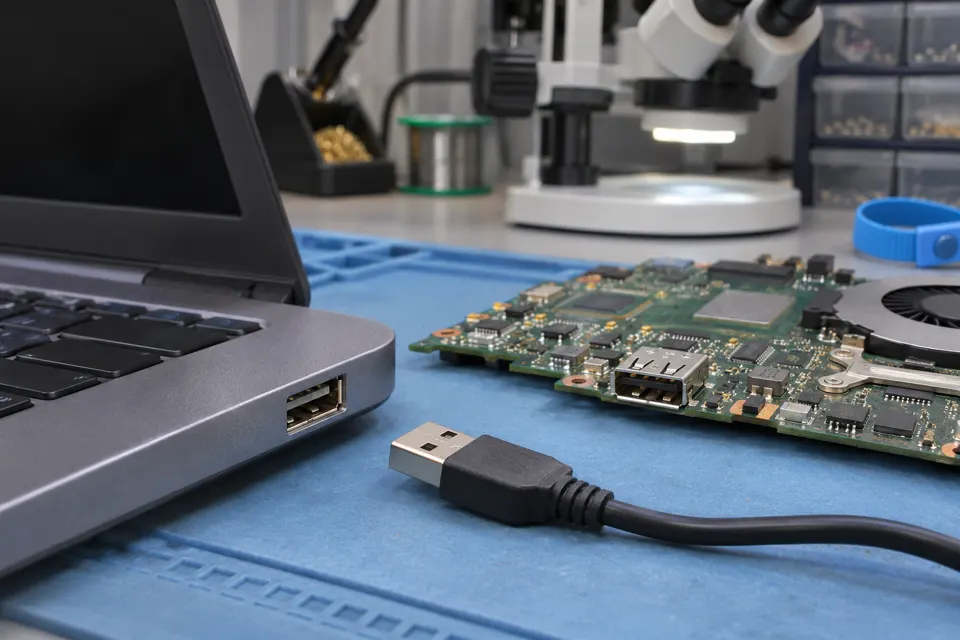
What this symptom can mean
Windows can reduce power to idle USB devices and later resume them. A problem appearing after idle or sleep may involve a device driver, hub, dock, firmware or power transition, but timing alone does not establish the cause. Microsoft recommends keeping USB selective suspend enabled; disabling power saving everywhere is not a universal repair.
One peripheral fails after waking
Compare the device’s direct connection with its normal hub or dock path. Other working USB devices show that the entire USB subsystem is not necessarily unavailable.
Several devices behind the same dock fail
The shared hub, dock connection and power arrangement deserve attention. Record whether the display and charging also changed rather than replacing each peripheral separately.
Moving the connector causes failure even while awake
That is a different pattern suggesting a physical connection issue. Stop stressing the port and report movement sensitivity explicitly.
Safe checks before service
- Record the computer, peripheral and dock models, Windows version and whether the PC was on battery or external power.
- For a non-storage peripheral, compare one direct supported USB connection after saving work.
- Use Windows Update and the computer or device manufacturer’s supported update tools; keep a note of any recent driver or firmware change.
- If a single restart restores function, record how long it stays working and whether the next normal sleep reproduces the issue.
Do not apply registry edits from another computer, uninstall every USB controller or turn off all power-saving settings as a first step. Never force-disconnect a drive during a write, and do not repeatedly test a failing storage device just because a restart briefly makes it appear.
What professional diagnosis should separate
- 01
Establish the trigger
Compare normal awake use, idle and system sleep without changing several variables together. Check relevant device errors and supported software versions.
- 02
Test the complete path
Separate the peripheral, cable, USB port and hub or dock. A targeted correction should be followed by the agreed sleep-and-wake test, not only a successful reconnect.
Why blanket power-setting changes can mislead
A workaround that keeps one device awake may change battery use without correcting its resume behavior. Settings exposed by one device driver may not exist on another. A managed work computer may also have an administrator’s power policy, so preserve the original configuration and get authorization before changing it.
For a business workstation, tell Mashfix which tasks stop working after lunch, overnight or a meeting. An intermittent scanner, card reader or input device can disrupt a particular workflow while ordinary browsing still works. That task-specific detail is more useful than reporting that the computer is generally slow.
When the affected device stores important files
An external drive disappearing after sleep needs extra care. Stop active work on it and verify an independent copy while it is stable, or request a data-first assessment if it is unreliable. This guide’s simple peripheral comparisons are not instructions to keep power-cycling a clicking or repeatedly disappearing disk.
Sleep/resume diagnosis should not require erasing the computer. For storage devices, protect files before repeated tests and explain whether any disconnect occurred during an active transfer.
Common questions
Answers before you approve a repair
Should I disable USB selective suspend everywhere?
No. Microsoft recommends keeping it enabled. A technician should establish the affected device and cause before proposing targeted changes.
Does working again after a restart prove the port is healthy?
No. It identifies a useful pattern, but physical, driver and shared-hub issues still need to be distinguished.
Need help in DFW? Compare the Dallas shop and Fort Worth shop at Suite 100, or review scheduled home and office visits. We confirm the service path, scope and timing before booking.
Product guidance and references
These technical resources explain the referenced behavior. Your device and situation still need their own assessment.