Gaming PC diagnostic guide
GPU Fans Not Spinning at Idle: Normal Mode or Fault?
Published by MASHFiX Computer Repair and Data Recovery ·
GPU fans may stop normally at idle. Check the exact card’s fan mode, temperature and symptoms before assuming a failed fan or starting a stress test.
Identify the full graphics-card model, including the board manufacturer. If there is unusual heat, a burning smell or a visibly obstructed fan, shut down instead of launching a game to force the fans on.
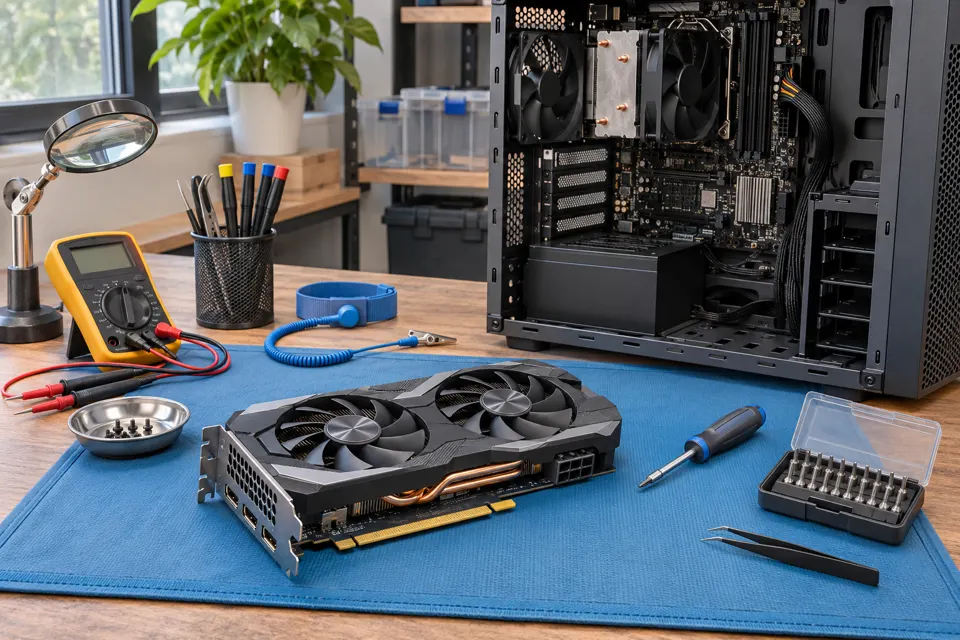
What this symptom can mean
Some graphics cards deliberately stop their fans during light use. A stationary fan on the Windows desktop can therefore be expected behavior. A fan that remains stopped when the model requires cooling, or one fan that behaves differently from a damaged neighbor, needs a separate assessment.
All fans stop at light load
A supported zero-RPM mode may be active. Compare the behavior with the exact product documentation; there is no single start temperature for every card.
One fan stalls or scrapes
A cable obstruction, damaged blade, bearing, connector or fan-control problem becomes more relevant. Do not flick the blade while the system is powered.
Temperature rises with no fan response
End the workload. Do not keep testing until the PC crashes; temperature, fan command and physical fan motion need to be compared under controlled conditions.
Safe checks before service
- Record whether the symptom occurs at startup, idle or during ordinary work. A brief startup spin does not prove the entire cooling system is healthy.
- Read the existing manufacturer utility’s temperature and fan information without applying a new tuning profile. Record which GPU the reading belongs to.
- With power off and the PC unplugged, look through the case for an obvious cable touching the blades. Leave removal and internal handling to someone familiar with the hardware.
- Include recent fan-curve, driver or graphics-card changes in the service request. Avoid installing several competing control tools.
Do not wedge fans in place, lubricate them through the housing, flash a different card’s firmware or run an extended benchmark to prove a suspected failure.
What professional diagnosis should separate
- 01
Expected behavior
Mashfix can compare the exact card configuration with the symptom and review whether a software profile is affecting fan commands.
- 02
Physical cooling
Inspection can separate obstruction or fan damage from a disconnected assembly and cooling-system problems.
- 03
Control and stability
A controlled evaluation can compare reported speed, actual motion and temperature before discussing fan, cooling or board work. Replacement availability depends on the card.
What to record without provoking a failure
A short observation of the existing symptom is more useful than repeated stress tests. Note the application, approximate time since startup, whether both fans are visible and whether the screen remains stable. Do not put fingers or a phone inside a running case.
If the card is still under manufacturer coverage, check that route before approving disassembly. For a DFW repair request, send the model and symptom first so the evaluation can be scoped; a still photograph alone cannot establish whether a stopped fan is defective.
Cooling evaluation should not require erasing storage. Back up important work while the computer is stable; stop using it if heat or electrical symptoms make that unsafe.
Common questions
Answers before you approve a repair
Should GPU fans always spin when the PC starts?
Not necessarily. Startup behavior and zero-RPM support vary. Use the exact manufacturer model guidance rather than another card’s video.
Is a low temperature enough to prove the fan works?
No. It may explain why the fan is currently stopped, but it does not test how the fan responds when cooling is required.
Need help in DFW? Compare the Dallas shop and Fort Worth shop at Suite 100, or review scheduled home and office visits. We confirm the service path, scope and timing before booking.
Product guidance and references
These technical resources explain the referenced behavior. Your device and situation still need their own assessment.