Laptop diagnostic guide
USB-C Laptop Not Charging: Charger, Dock, Port or Board?
Published by MASHFiX Computer Repair and Data Recovery ·
The same USB-C connector can serve different functions. Narrow down a charging problem without forcing the plug or buying parts from one symptom.
If there is no spill, swelling, heat or physical damage, compare the laptop's normal charger connected directly to its documented charging port with the dock removed. Record the result and any charger warning. Stop testing a loose, hot or damaged connector.
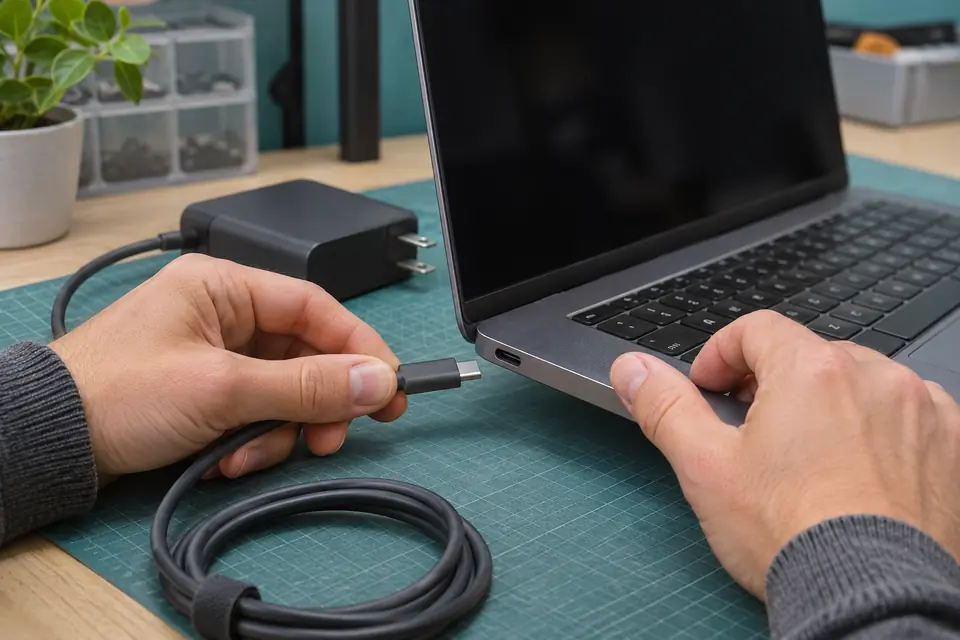
What this symptom can mean
Charging needs a compatible port, charger and cable with the required power capability. A USB-C shape alone does not confirm that every port charges the laptop or that a dock delivers enough power. A damaged port, battery problem or board-level power fault can also prevent charging, so a slow-charger message is not a complete diagnosis.
Direct charging works, dock charging does not
Focus the comparison on the dock's power supply, laptop compatibility, cable and supported power delivery. Replacing the laptop battery before making that comparison can miss the actual problem.
It charges only with the plug held at an angle
Stop bracing or wiggling the cable. Record the symptom and arrange inspection of the connector and board attachment before more mechanical stress changes the damage.
A charger is recognized but the battery drains
Note whether it happens only under a demanding workload. The incoming power, battery condition and operating load need to be considered together rather than assuming that recognized means sufficient.
Safe checks before service
- Check the laptop manual for the correct charging port and charger specification.
- Use a known-good compatible charger and cable, not a random phone charger or damaged lead.
- Disconnect the dock and accessories for one direct comparison if the connector is physically sound.
- Record the adapter warning, battery percentage and whether the percentage changes while the computer is off.
- Do not insert metal tools, apply liquids or continue using a hot or loose connector.
Tape, wedges and repeatedly rotating the plug can put more stress on the socket, solder joints or board. If there was a spill, electrical odor or swelling, disconnect power when safe and skip normal charger experiments.
What professional diagnosis should separate
- 01
Verify the external power path
A compatible charger, cable and direct connection are compared with the dock setup. The symptom must be reproduced with the equipment you actually use.
- 02
Inspect the port and battery behavior
Physical connector condition and charging behavior are evaluated separately. An unreliable socket and a worn battery can coexist without one explaining the other.
- 03
Assess the board when indicated
If the external path does not explain the fault, power-input and charging-circuit testing may be appropriate. Any component repair or replacement is quoted after the evidence is reviewed.
Bring the setup that fails
Bring the laptop, its usual charger, detachable cable and the dock if the problem occurs through it. A photo of the adapter labels can help the team plan the intake. Explain whether the setup ever worked and what changed: a new monitor, cable, charger, dock or laptop can change the comparison.
For an office with multiple desks, label which combinations work. One laptop failing on every dock is different from every laptop failing at a single desk. Do not move working equipment around so often that the original pattern becomes impossible to reproduce.
Agree on the success check
A useful handoff test includes a stable connection without holding the cable, battery behavior appropriate to the approved work and the dock functions that were part of the original complaint. If the dock powers a monitor but not the laptop, that observation should not be counted as a completed charging repair.
Mashfix can assess laptop charging and board faults at DFW repair locations, and scheduled office support can help when the desk setup itself matters. Describe the equipment before arranging an onsite visit; board work may need bench testing.
A charging repair normally does not require an erase. If the battery is empty and important files have no backup, tell the technician before authorizing a motherboard exchange or a Windows reinstall.
Common questions
Answers before you approve a repair
Can every USB-C port charge a laptop?
No. Port capabilities differ by model. Use the manufacturer's documentation for that specific computer and its intended power input.
Does a charging icon prove the charger is powerful enough?
No. The laptop may recognize power while the available delivery is insufficient for the workload. Charger, cable and dock compatibility still matter.
Should I replace the battery first?
Not without diagnosis. A port, adapter, cable, dock or motherboard fault can produce a similar complaint. Ask what evidence supports the proposed part.
Need help in DFW? Compare the Dallas shop and Fort Worth shop at Suite 100, or review scheduled home and office visits. We confirm the service path, scope and timing before booking.
Product guidance and references
These manufacturer resources explain the referenced product behavior. Your model and condition still need their own assessment.