Laptop diagnostic guide
Wi-Fi Keeps Dropping on One Laptop
Published by MASHFiX Computer Repair and Data Recovery ·
Separate a laptop Wi-Fi fault from a router or internet problem before replacing parts. Safe comparisons and DFW service options.
Compare another device on the same network at the same time. Record whether the laptop loses the Wi-Fi connection itself or stays connected without internet.
What this symptom can mean
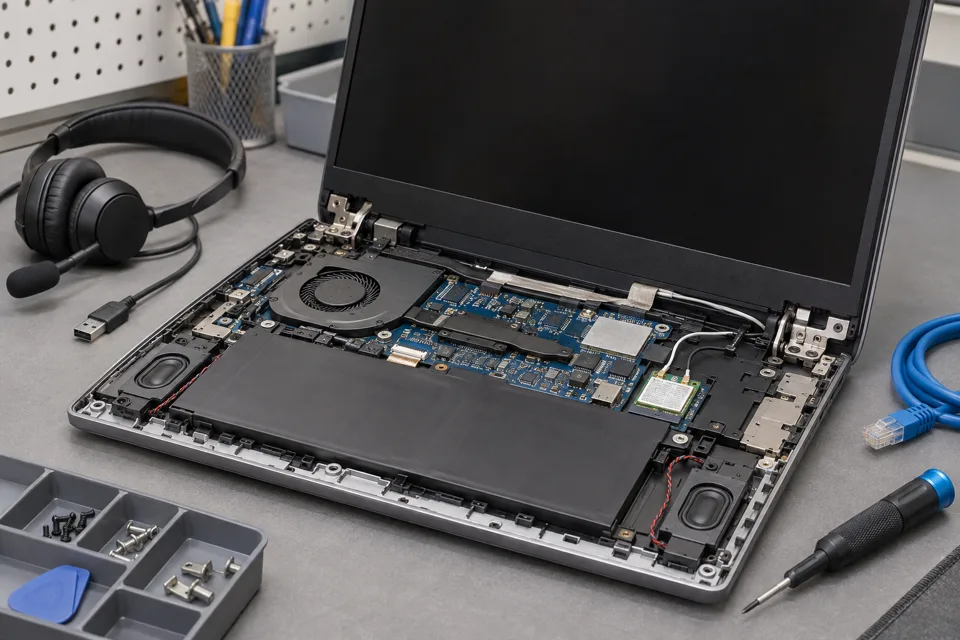
A weak radio signal, driver fault, damaged antenna, power setting or router interaction can interrupt a single laptop. A website failing is different from the wireless connection disappearing. That distinction determines whether to investigate the device, local network or internet provider.
Only this laptop disconnects
Compare it near the router and on a second trusted network. A repeatable device-specific problem is more useful evidence than one speed test.
Every device fails together
Record the modem and router status. An onsite network assessment or provider investigation may be more useful than bringing only the laptop to a bench.
Moving the lid changes reception
Antenna routing and hinge-area damage become possibilities. Stop flexing a damaged lid to reproduce the fault.
Safe checks before service
- Check airplane mode and whether the expected network is selected.
- Save work and restart the laptop once.
- If authorized, compare Ethernet with Wi-Fi; a stable cable connection narrows the problem but does not identify a failed radio.
- Record recent updates, router changes and the time of each drop.
A reset can remove VPN adapters and network settings. On a business computer, ask IT before removing drivers, forgetting networks or changing security settings.
What professional diagnosis should separate
- 01
Reproduce the boundary
Mashfix can compare device behavior with the original location and a known working connection.
- 02
Inspect the laptop path
Driver history, radio detection, antenna connections and physical damage can be assessed before ordering a card.
- 03
Choose the service location
A room-specific or multi-device problem may need an onsite visit; a damaged laptop connector may need bench work.
What to bring or leave connected
For a shop evaluation, bring the charger and a description of the network, without writing the Wi-Fi password in the request. For a home or Dallas/Fort Worth office visit, leave the router and affected devices connected so the original symptom can be observed.
Ask whether the proposed work changes only the laptop or also the network. Agree on a retest that includes the place and activity where the drop occurred. A brief successful connection at a counter does not prove reliable coverage throughout a building.
Tell Mashfix which files are irreplaceable before authorizing changes. Keep a separate verified backup when the computer can be used safely; stop copying if storage disconnects, clicks or produces read errors. Never place passwords or recovery keys in a public request.
Common questions
Answers before you approve a repair
Does a USB Wi-Fi adapter fix the cause?
It can provide an alternate connection or comparison. It does not repair damaged antennas or establish why the internal connection failed.
Need help in DFW? Compare the Dallas shop and Fort Worth shop at Suite 100, or review scheduled home and office visits. We confirm the service path, scope and timing before booking.
Product guidance and references
These manufacturer resources explain the referenced product behavior. Your model and condition still need their own assessment.