Office IT diagnostic guide
Printer Offline on One Computer but Working on Others
Published by MASHFiX Computer Repair and Data Recovery ·
Compare one affected computer with the working setup before resetting a shared printer. A focused check can protect the rest of the office's printing.
Send one harmless test page from a working computer and compare it with the affected computer. Record the selected printer and connection type. If everyone else can print, do not factory-reset the printer or office router as the first experiment.
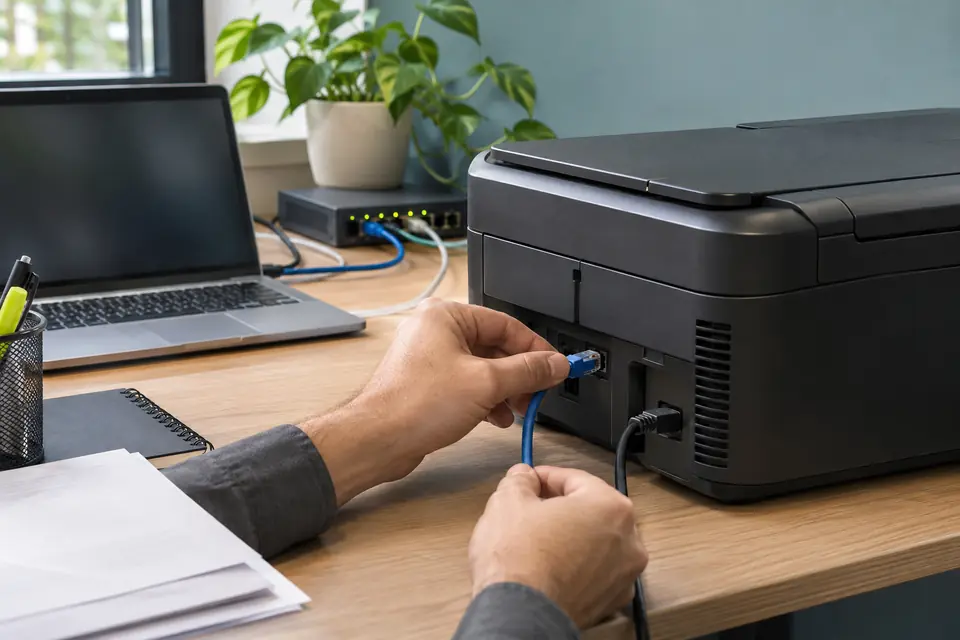
What this symptom can mean
Offline can describe the computer's view of the connection rather than a broken print engine. A selected duplicate queue, network difference, driver, stuck job or connection setting can affect one workstation while other users still print. If every device fails, the shared printer, connection or network deserves a different assessment.
Only the new laptop cannot print
Compare its chosen printer, driver and network with a working desk. A familiar printer name can refer to an old or duplicate installation rather than the connection actually in use.
Printing works, scanning does not
Treat scanning as a separate task with its own destination, application and permissions. A successful print test is not proof that scan-to-computer or scan-to-folder has been configured.
All users stopped printing together
Check the printer's own display and connection state before changing every workstation. Ask whether a power, network or equipment change happened at the same time.
Safe checks before service
- Confirm power, paper, visible error messages and the correct selected printer.
- Compare the affected computer's network with the intended printer network; a guest connection may have different access.
- Check whether a harmless test page fails from Windows itself or only from one application.
- Use the Windows printer troubleshooter or the exact manufacturer's support instructions rather than downloading a random driver utility.
- Coordinate changes with the office contact and preserve a record of the working setup.
A shared printer is part of an office workflow. Broad network, account or security changes can disrupt working users and expose documents. Ask the authorized IT contact to handle managed settings and changes outside your responsibility.
What professional diagnosis should separate
- 01
Map the working and failing paths
We identify the printer model, connection, affected computers and selected queue. A working comparison keeps the investigation focused rather than replacing unrelated equipment.
- 02
Check the workstation configuration
The driver, queue, destination and relevant connectivity are assessed. Any change should preserve the working users' access and respect the business's managed settings.
- 03
Verify the actual office task
After approved work, test printing from the intended application and computer. If scanning was included, verify the agreed destination separately using a non-sensitive test document.
Why onsite diagnosis can be the right choice
A printer that works on a shop network may still fail at the desk where the problem occurs. The office Wi-Fi, wired connection, shared host and workstation configuration are part of the evidence. Leave the equipment connected when arranging an onsite visit unless it presents a safety issue.
Tell Mashfix whether one person or the whole team is affected, whether printing ever worked on the current computer and what changed most recently. Include the printer model and whether it connects by USB, Ethernet or Wi-Fi. Do not attach an invoice, patient record or other private document to prove it cannot print.
Agree on what the visit covers
Ask whether the scope is connection setup, supported driver installation, scanning or a physical printer fault. Mechanical repairs and parts availability are different from workstation setup and should not be assumed from a connection-support request.
Mashfix provides scheduled home and office printer support across DFW, including Dallas and Fort Worth. The team confirms the address, scope, timing and any visit charges before booking. A repair request is not an automatically confirmed appointment.
Print queues and scanner destinations can contain private documents. Use a harmless test page and ask the office's authorized contact before clearing shared jobs, changing destinations or accessing another user's computer.
Common questions
Answers before you approve a repair
Does offline mean I need a new printer?
No. A connection or workstation configuration issue can produce that status. Compare a known working user and the printer's own error display before deciding on replacement.
Why can my phone print when the laptop cannot?
The devices may be using different connection or software paths. That is a useful comparison, but the laptop's driver, network and chosen queue still need checking.
Should I bring the printer to the shop?
Describe the issue first. If the fault depends on office connectivity or several workstations, an onsite visit may preserve more useful evidence than moving the printer.
Need help in DFW? Compare the Dallas shop and Fort Worth shop at Suite 100, or review scheduled home and office visits. We confirm the service path, scope and timing before booking.
Product guidance and references
These manufacturer resources explain the referenced product behavior. Your model and condition still need their own assessment.