Setup diagnostic guide
New Computer File Transfer: What to Verify Before Erasing the Old PC
Published by MASHFiX Computer Repair and Data Recovery ·
Seeing folders on the new computer is only part of a successful move. Check files, applications, access and a separate backup before retiring the old machine.
Keep the old computer and original storage unchanged until the files you need have been checked on the new one. Make a short acceptance list: a current document, recent photos, the accounting file, printing and any essential application or account access.
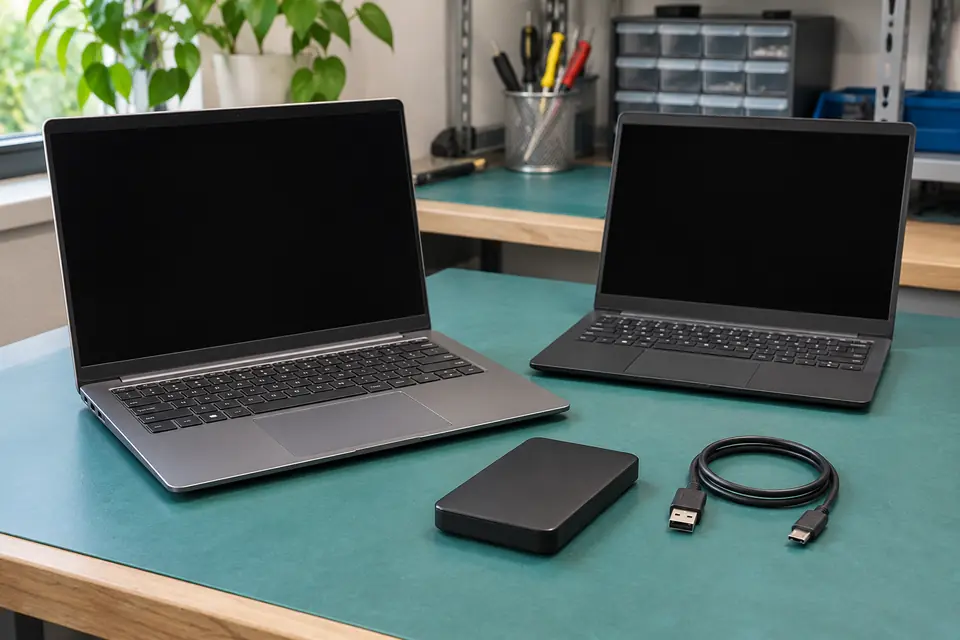
What this symptom can mean
Moving readable files, reinstalling applications and restoring a backup are related but different tasks. Microsoft documents cloud and external-storage transfer options; the right plan still depends on where your files are, the condition of the old storage and the accounts and software you use. A failing source drive needs a recovery decision before a routine transfer.
Both computers still work normally
Plan the move while the source is available for comparison. Identify local folders, cloud files and required applications before assuming that copying the desktop covers everything.
The old computer is dead or liquid-damaged
Do not keep powering it on to hurry the transfer. The original storage, encryption and board condition may require recovery first, separate from setting up the replacement computer.
Your business software opens but the file is missing
A shortcut or installed program is not proof that the current working data moved. Identify the correct company file, its date and the authorized source without creating a competing live copy.
Safe checks before service
- List the folders and applications you actually use, including any files outside Documents and Desktop.
- Confirm access to your own Microsoft, email or other required account from a trusted device before the move.
- Keep a separate backup and enough destination space; do not treat the only old drive as both source and backup.
- Record which applications need a legitimate installer, account sign-in or license on the new device.
- Test important files on the new computer before approving removal, recycling or erasure of the original storage.
A transfer can finish while omitting an overlooked folder, an unavailable cloud file or application data. Verify the agreed files and tasks first, then make a separate decision about secure disposal. If a source stalls or disappears, stop treating it as a routine copy job.
What professional diagnosis should separate
- 01
Define the data and application scope
We identify what must move, what must be installed again, and what belongs to a cloud or organizational account. The owner controls credentials and approves access.
- 02
Copy from a stable, authorized source
Storage condition and encryption are checked before normal transfer work. A recovery estimate is discussed separately if the source cannot be read reliably.
- 03
Verify before handoff
Open agreed sample files, check the current business data and test the essential tasks on the replacement device. Discuss what was not included and how a separate backup will be maintained.
Use a practical acceptance checklist
Choose examples you can recognize: a recently edited document, a photo from the latest event, the most current business file and an older item from the archive. Check that they open in the right application. A folder icon or total file count is not the same as confirming that the material is readable and current.
Also test the tasks that make the computer usable: sign into email, print a harmless page, open the required program and connect to the intended network. Browser settings, saved accounts and licensed applications may need separate configuration. Do not assume that copying a program folder installs working software.
Plan the old device's next step separately
Once the move is verified, decide whether the old computer stays as a temporary reference, receives a repair or goes through an appropriate disposal process. Set a clear owner-controlled decision before erasing it. The transfer quote should not silently include wiping the only original source.
Mashfix provides setup and accessible-file transfer support for DFW homes and businesses, with recovery evaluation when the old source has failed. Scheduled onsite help can be useful when printers, office software or the home setup must work at handoff. Timing and scope are confirmed before service.
A migration gives you a working destination; a backup gives you another recoverable copy. Keep those goals separate and verify the original source, new destination and independent backup before removing anything.
Common questions
Answers before you approve a repair
Does transferring files also move every application?
No. Many applications require installation, sign-in or a valid license on the new computer. Include essential software in the setup scope instead of assuming its folder is enough.
Can files be transferred from a laptop that will not start?
Sometimes, depending on storage condition, encryption and design. It may require a data-recovery evaluation rather than an ordinary file-transfer service.
When is it safe to erase the old PC?
After you have verified the agreed files and working tasks on the new computer, confirmed a separate backup and explicitly approved the old device's disposal plan.
Need help in DFW? Compare the Dallas shop and Fort Worth shop at Suite 100, or review scheduled home and office visits. We confirm the service path, scope and timing before booking.
Product guidance and references
These manufacturer resources explain the referenced product behavior. Your model and condition still need their own assessment.